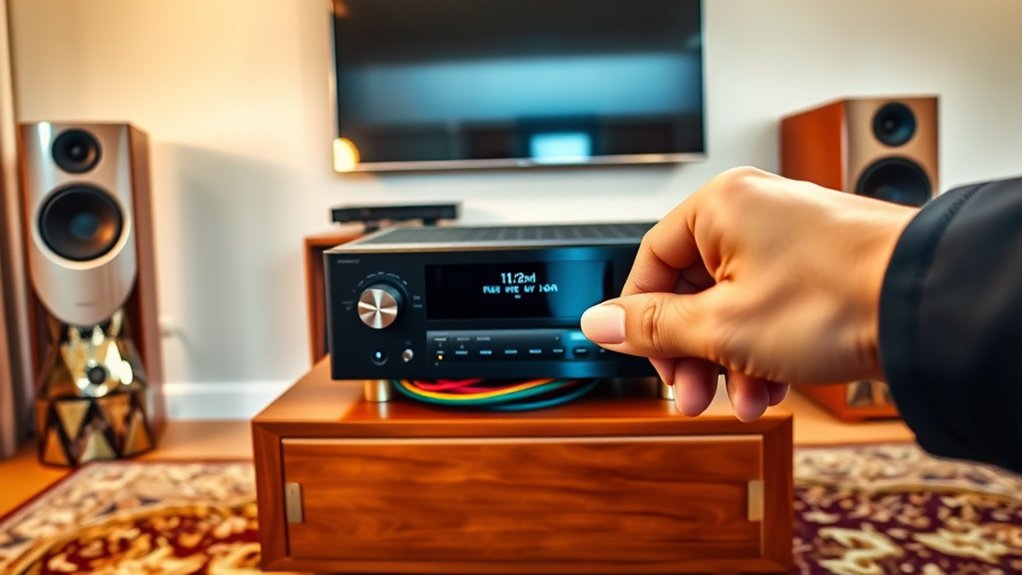


When you’re stuck with no sound from your AV receiver, start by checking your HDMI and audio cables—are they snug and undamaged? Next, make sure the receiver’s powered on and set to the correct input; nobody likes those awkward moments of silence, right? A quick power cycle may additionally help, as it’s like a reset button for your mind! If issues persist, you might need to check internal components or external device settings. Want to tackle more specific troubleshooting steps?
Key Highlights
- Check all HDMI and audio cable connections for secure fit and verify cables support both audio and video transmission.
- Ensure the receiver is powered on, set to the correct input source, and not muted in the audio settings.
- Inspect speaker configurations in the receiver’s setup menu to confirm proper assignment and optimize audio output settings.
- Power cycle the receiver by unplugging it for 30 seconds to reset any potential software glitches affecting sound.
- Verify that all connected external devices, like Blu-ray players, are powered on and properly set to output audio to the receiver.
Check HDMI and Audio Cable Connections
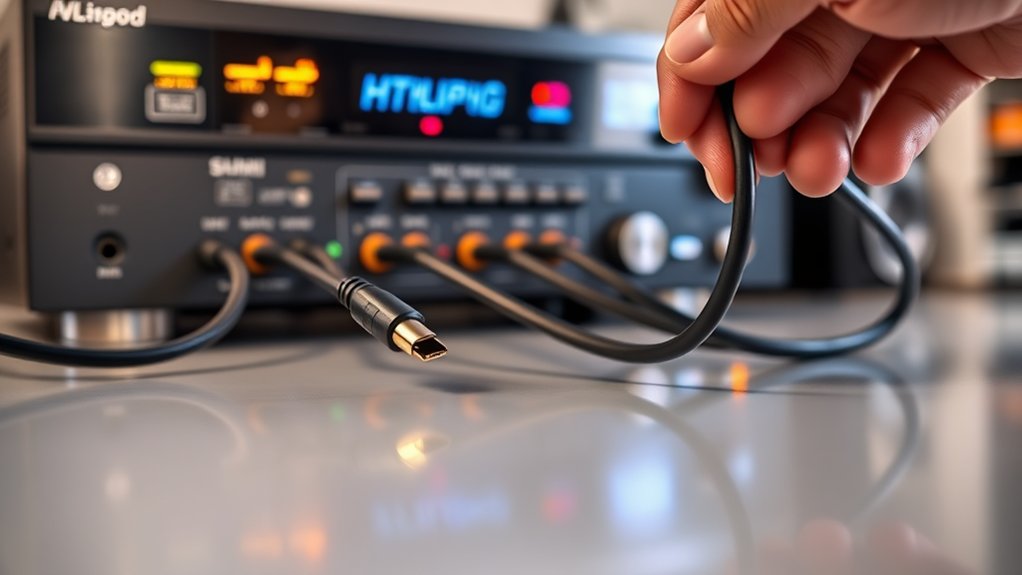
Before diving into the domain of technical fixes, it’s crucial to check the HDMI and audio cable connections—you might be surprised at how often simple cable issues are the culprit behind no sound from your AV receiver.
First, inspect your HDMI cable; confirm it supports both audio and video, as some only transmit video. Look for any visible damage like kinks or fraying, and swap out old cables with certified high-speed ones that support ARC or eARC. HDMI ARC technology is a common feature that can help resolve audio issues when properly configured. Additionally, testing a known working HDMI cable can help identify if the original cable is the source of the issue.
Next, verify all connections are snug—loose cables can often lead to audio interruptions.
Finally, double-check you’re using the correct HDMI ports and compatible cables. After all, wouldn’t it be a letdown if it’s just a loose connection ruining your movie night?
Adjust Receiver and Source Device Settings
Even though it may seem frustrating when your AV receiver is silent, adjusting both the receiver and your source device settings can often resolve the issue.
First, confirm that the receiver is powered on, set to the correct input, and not muted—no one wants to crank up a muted device, right? Additionally, high-definition sound quality is essential for maximizing your audio experience, so ensuring your settings are optimal is crucial.
Ensure your AV receiver is on, set to the right input, and not muted—there’s no joy in cranking a silent device!
Next, check the speaker configuration in the receiver’s setup menu to verify everything’s properly assigned and activated. Additionally, keep in mind that the receiver’s built-in amplification enhances overall sound quality, so ensure that your settings are optimizing this feature. If you still experience issues, be sure to inspect speaker cables for proper connections as loose or corroded cables can disrupt sound as well.
For audio source devices like Blu-ray players or consoles, verify their audio output settings match the receiver’s capabilities.
Finally, confirm cables are securely connected and the right speaker set is active.
After making these adjustments, you’ll likely find your AV receiver singing again, bringing your audio experience back to life.
Power Cycling and Reset Procedures

Many AV receiver issues, including that dreaded silence, can often be resolved with a simple power cycle or factory reset—who knew it could be that easy?
To power cycle, first, turn off your receiver and unplug it from the wall. Give it a break for about 30 seconds to an hour; this allows internal circuits to reset. Reconnect everything and power it up again to check for sound. If you experience ongoing problems like a faulty on/off button, the receiver may inadvertently cycle through the factory reset menu.
If that doesn’t work, a factory reset might be needed, restoring everything to its original settings—just make certain to consult your manual for specific instructions!
Internal Hardware Inspection and Repair
When you’ve exhausted all the surface-level fixes for your AV receiver’s silence, it’s time to dig a little deeper into internal hardware inspection and repair.
Start by examining the inside—look for burnt components or swollen capacitors that might scream, “I’m malfunctioning!”
Don’t forget to check for overheating damage on power transistors.
Next, test these parts using a multimeter to assess continuity and resistance.
If you find faulty components, don’t panic; replacing capacitors or resoldering cracked joints can work wonders.
Additionally, make sure you clean out dust, as it’s the enemy of good ventilation.
Finally, after fixing any issues, run a calibration check.
You wouldn’t want your repaired receiver still hiding secrets, would you?
Troubleshooting Common External Device Issues

Before diving headfirst into troubleshooting your AV receiver, let’s pause for a moment to contemplate the external devices connected to it, as sometimes the source of your sound issues doesn’t actually lie within the receiver itself.
Start by ensuring that all your devices, like that Blu-ray player or game console, are powered on and set to the correct audio output mode. You wouldn’t want to miss the action since the console’s muted, right?
Check those HDMI connections too; make sure they’re snug and in the right ports. Sometimes, cycling power—turning everything off and on again—resets stubborn issues.
Finally, verify input settings on your receiver; it won’t magically know what you want unless you inform it!
Frequently Asked Questions
Could My Tv’S Audio Settings Affect the AV Receiver Sound?
Yes, your TV’s audio settings definitely affect the AV receiver sound. If ARC isn’t activated or the output mode is wrong, you might experience no sound. Make certain to check those settings to ascertain proper functionality.
What if I Hear Sound Intermittently From My AV Receiver?
If you hear sound intermittently from your AV receiver, check speaker connections and wiring for damage. Confirm settings are correct, verify input/output configurations, and rule out interference or overheating issues by inspecting surrounding devices.
Can My AV Receiver Produce Sound Without External Speakers Connected?
No, your AV receiver can’t produce sound without external speakers connected. It’s designed to amplify audio but needs speakers or headphones to convert that signal into audible sound. Think of it as silent without a sound source.
How Do I Determine if My Receiver Needs a Firmware Update?
To determine if your receiver needs a firmware update, check the manufacturer’s website for the latest version, compare it with your current firmware, and consider signing up for notifications about any future updates.
Is It Safe to Use a Power Strip With My AV Receiver?
It’s safer to use a power strip with surge protection for your AV receiver. Basic power strips don’t protect against electrical surges, which can damage your equipment. Always prioritize safety by checking the surge protector’s joule rating.